
How do you speed up your WordPress website in 2025 without breaking anything or hiring expensive developers? It’s one of the most asked questions today — especially as Google, Bing, and AI search systems give higher visibility to sites that load fast, pass Core Web Vitals, and deliver a smooth user experience on mobile.
A slow WordPress site affects everything: your rankings, your traffic, your conversions, and even your ad revenue. If your pages take more than a few seconds to load, visitors leave immediately, your bounce rate spikes, and your content struggles to appear in AI Overviews and search results.
The good news? Speeding up a WordPress website is easier than most people think. You don’t need coding knowledge, and you don’t need to migrate platforms. By improving your hosting, optimizing images, reducing scripts, cleaning up your database, and using the right performance tools, you can dramatically improve loading speed in just a few hours.
20 Best Ways to Speed Up Your WordPress Website in 2025 (Beginners to Advanced)
In this guide, you’ll learn 20 proven ways to speed up your WordPress website in 2025 — from beginner-friendly tips to advanced optimization methods used by high-traffic blogs, WooCommerce stores, and professional WordPress developers. Each tip is practical, measurable, and designed to help you rank higher, load faster, and deliver a better experience to your users.
Let’s begin with the foundational improvements that make the biggest difference.
1. Choose High-Performance WordPress Hosting (Start With the Foundation)
Your hosting server is the engine of your WordPress website. Even with perfect optimization, a slow or overloaded server will always keep your site slow. This is why choosing high-performance hosting is the most important step when trying to speed up your WordPress website in 2025.
Why Hostinger?
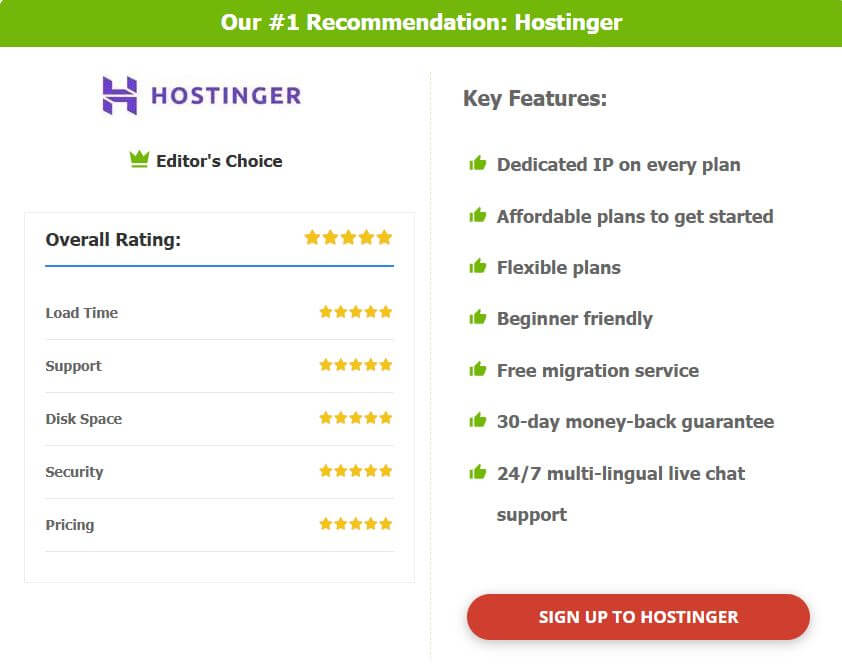
Hostinger is one of the fastest and most affordable Managed WordPress hosting providers today. It uses LiteSpeed servers, which are significantly faster than traditional Apache servers. This means your WordPress site loads faster, handles more traffic, and passes Core Web Vitals more easily.
Real Example
A blogger using cheap shared hosting may see page load times of 6–7 seconds during peak traffic because multiple sites share the same limited resources.
The same site moved to Hostinger can load in 1.5–2 seconds because it gets optimized WordPress caching, LiteSpeed technology, and better resource allocation.
What to look for in good hosting:
- LiteSpeed or NGINX servers
- Free CDN
- SSD or NVMe storage
- Automatic backups
- One-click staging
- Built-in caching
→ If you want the fastest improvement without technical work, upgrading to Hostinger’s WordPress plan should be your first move.
✅ Which Hosting Service Is Used by This Website?
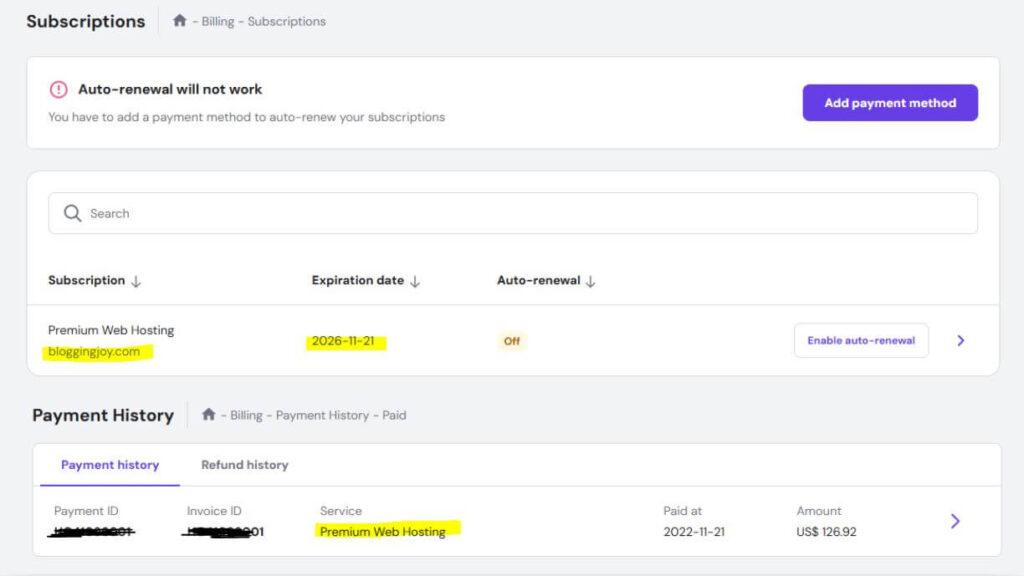
This website is proudly hosted on Hostinger’s Premium Web Hosting Plan.
After testing multiple hosting providers over the years, I chose Hostinger for its speed, uptime reliability, and unbeatable pricing. The Premium Plan offers everything needed for a fast, secure, and scalable WordPress site — including free domain, free SSL, and LiteSpeed servers that improve loading times significantly. Here is the proof of my purchase details, expiration date and everything that you must know.
And the best part? You can use the exclusive coupon code BLOGGINGJOY to get an extra discount on top of their already affordable plans. If you’re planning to get AdSense approval or want better RPMs, moving to Hostinger is a smart long-term investment.
🔥 Get Up to 85% OFF on Hostinger Hosting – Limited Time Deal!
Launch your website with blazing-fast hosting at just a fraction of the price. Use Coupon Code: BLOGGINGJOY at checkout for extra savings.
✅ Free Domain | ✅ Free SSL | ✅ 24/7 Support | ✅ WordPress Optimized
👉 Click Here to Grab Hostinger’s 85% Discount Now – Don’t Miss Out!
2. Compress and Convert All Images to WebP/AVIF
Images are usually the biggest reason a WordPress site loads slowly. Large, unoptimized images can add 2–5 seconds to your load time — especially on mobile.
Why this matters
Search engines and AI crawlers care a lot about image optimization because heavy media slows down the First Contentful Paint (FCP), Largest Contentful Paint (LCP), and overall Core Web Vitals.
What to do
- Compress all images before uploading
- Convert them to WebP or AVIF formats
- Resize images to the exact dimensions needed
- Add descriptive alt text for SEO
Tools that help
- ShortPixel
- Imagify
- TinyPNG
- Hostinger’s built-in image optimization (via LiteSpeed Cache)
Example
You upload a 2MB PNG image to a blog post.
After converting to WebP and compressing it, the size becomes 200KB — a 90% reduction with zero visible loss in quality.
Your page loads instantly faster.
→ Optimizing images alone can improve your PageSpeed score by 20–30 points.
3. Use a Content Delivery Network (CDN) for Faster Global Loading
A Content Delivery Network (CDN) helps your WordPress site load fast from anywhere in the world. Instead of loading everything from a single server, a CDN stores your files on multiple servers worldwide and delivers content from the location closest to the visitor.
Why this speeds up your website
Without a CDN:
A visitor from the US loads your site from a server in Asia → slow.
With a CDN:
The same visitor loads your site from a server in the US → fast.
Best CDN Options (2025)
- Cloudflare CDN (Free + Pro)
- Hostinger’s global CDN (included in premium plans)
- BunnyCDN
- StackPath
Example
Suppose your website is hosted in India, but you get 30% of your traffic from US and UK. Without a CDN, those users will experience 3–4 second load delays.
A CDN reduces this to under 1 second, dramatically improving bounce rate and rankings.
→ If you’re using Hostinger, simply enable their CDN in hPanel for instant improvement.
4. Keep WordPress, Themes, Plugins & PHP Updated
Many WordPress sites slow down simply because they run on outdated software. Every update—whether WordPress core, theme, plugin, or PHP—comes with performance improvements, bug fixes, and security patches.
Why updates improve speed
- Newer PHP versions (like 8.1/8.2) execute code faster
- Updated themes remove old, bloated code
- Plugins become more lightweight or optimized
- WordPress core gets speed-focused improvements every year
Example
A site running on PHP 7.4 may process a request 2–3x slower than PHP 8.2.
Simply switching PHP versions can cut backend load time from 400ms to 150ms.
Checklist to stay updated:
- Update WordPress to the latest stable version
- Update your theme (avoid outdated ones)
- Remove or replace plugins that haven’t been updated in 12+ months
- Update PHP via your hosting provider (Hostinger makes this one-click)
→ Keeping everything updated is one of the easiest ways to speed up WordPress without touching code.
5. Clean Up and Optimize Your WordPress Database Regularly
Over time, your database collects junk data—post revisions, spam comments, trashed posts, old sessions, and expired transients.
This bloat slows down your site because WordPress has to sift through unnecessary tables every time a page loads.
What slows down your database?
- Hundreds of old revisions
- Thousands of spam comments
- Tables left behind by deleted plugins
- Auto-drafts and trashed posts
- Heavy WooCommerce sessions
What to clean
- Post revisions
- Drafts and autosaves
- Spam and trashed comments
- Orphaned metadata
- Unused plugin tables
Tools to clean database safely
- WP-Optimize
- Advanced Database Cleaner
- LiteSpeed Cache (on Hostinger → built-in DB cleaner)
Example
A WooCommerce site with 3 years of revisions and spam comments may have a 200MB–500MB database.
After cleanup, it can shrink to 40MB, instantly improving query time and speeding up page loads.
→ Cleaning your database every month keeps your WordPress site lean and fast.
6. Reduce HTTP Requests and Remove Unnecessary Scripts & Fonts
Each time a visitor loads your website, their browser requests every file needed to display the page—CSS, JavaScript, fonts, icons, tracking scripts, and more.
The more files your page loads, the slower the website becomes.
What causes bloated HTTP requests?
- Multiple font families & weights
- Social sharing scripts
- Popups, sliders, heavy builders
- Google Fonts loaded externally
- Unused JS/CSS files from plugins
- Emojis, embeds, comment scripts
How to fix it
- Limit font usage (1–2 families max)
- Host Google Fonts locally (faster)
- Disable unnecessary theme scripts
- Turn off emojis and embeds
- Delay social sharing scripts
- Combine CSS/JS using a performance plugin
Fastest method:
Hostinger users can use LiteSpeed Cache → “Optimize → CSS/JS”
It allows you to:
- Minify CSS & JS
- Combine files
- Remove unused CSS
- Delay unnecessary JavaScript
Example
A site using 6 different Google Fonts + 5 plugin scripts may load 50–70 requests on one page.
After cleanup, you can bring this down to 15–20 requests, improving load time dramatically.
→ Fewer requests = faster loading, better Core Web Vitals, and higher rankings.
7. Choose a Lightweight, Fast WordPress Theme
Your theme controls the design and functionality of your entire website. A heavy or poorly coded theme adds unnecessary CSS, JavaScript, animations, and visual elements that slow down your site drastically.
Why lightweight themes matter
Fast themes use clean, minimal code and load only the files actually needed — improving LCP, CLS, and overall speed.
Recommended lightweight themes (2025)
- GeneratePress (super-fast, ideal for blogs + business)
- Astra (light + customizable)
- Kadence (modern + performance-focused)
- Blocksy (great for block-based sites)
Example
A heavy multipurpose theme like Avada or BeTheme can load 2–3MB of assets.
Switching to GeneratePress reduces that to under 300KB, cutting load time from ~4 seconds to under 1 second — without losing design flexibility.
→ If you want design + speed, go with GeneratePress or Astra. They work perfectly with Hostinger’s LiteSpeed setup.
8. Limit or Disable the WordPress Heartbeat API
The WordPress Heartbeat API allows real-time tasks like autosaving posts, showing plugin notifications, and checking user sessions.
Useful — but it runs every 15 seconds, which can overload your server and slow down both the backend and frontend.
Why it slows your site
Heartbeat sends continuous requests in the background.
On slow hosting, this leads to:
- High CPU usage
- Backend lag
- Slow admin dashboard
- Increased memory usage
What to do
- Limit Heartbeat activity (recommended)
- Completely disable it in areas not needed (like frontend)
Tools to control Heartbeat
- Perfmatters
- Heartbeat Control plugin
- LiteSpeed Cache (Hostinger → includes Heartbeat optimization)
Example
A blog owner spends 2 hours daily in the WordPress editor.
Heartbeat might send hundreds of requests, causing the admin panel to freeze.
After limiting the API to “every 60 seconds,” CPU usage drops significantly, and the dashboard becomes fast again.
→ Optimizing Heartbeat is a quick, beginner-friendly win for overall site performance.
9. Implement Lazy Loading for Images, Videos & Iframes
Lazy loading means images and videos load only when the user scrolls to them — not all at once when the page first opens.
This dramatically improves initial page load time, especially for content-heavy blogs.
Why lazy loading improves speed
- Reduces initial load size
- Improves LCP (Largest Contentful Paint)
- Ideal for long blog posts with many images
- Helps pages load instantly on mobile
What to lazy load
- Blog post images
- YouTube videos (use lite iframes)
- Embedded content
- Comments section (if using Disqus or Facebook comments)
Tools that make lazy loading easy
- Native WordPress lazy loading (built-in)
- LiteSpeed Cache (Hostinger feature)
- WP Rocket
- Perfmatters
Example
A blog post with 20 images may load 5MB of media initially.
With lazy loading, the browser loads only the first 2 images (200KB), and the rest only appear when scrolling — making the page load in under a second.
→ Enabling lazy loading alone can boost your PageSpeed score from 60–70 to 90+.
10. Enable Caching to Deliver Pages Faster (Biggest Speed Boost)
Caching is one of the most powerful ways to speed up a WordPress site. When caching is enabled, WordPress no longer loads every file dynamically — instead, it serves a pre-built version of your page, making load times almost instant.
Types of caching that matter
- Page caching → serves static copies of pages
- Browser caching → stores files locally for returning visitors
- Object caching → speeds up database queries
- Opcode caching → caches PHP execution
Fastest way to enable caching
- Hostinger offers LiteSpeed Cache, one of the fastest caching systems in the world (built directly into their servers).
- WP Rocket is another premium option that simplifies all caching steps in one click.
Example
A website without caching: loads in 3.5 seconds.
The same site with LiteSpeed or WP Rocket caching: 0.9 seconds.
→ If you want immediate speed gains, caching is the #1 improvement.
11. Minify & Combine CSS and JavaScript Files
Every WordPress site loads multiple CSS and JS files — from themes, plugins, fonts, builders, and embeds.
These files often contain spaces, comments, and unused code that make them unnecessarily heavy.
Minification removes:
- extra spaces
- line breaks
- comments
- redundant characters
File combining reduces number of requests
Instead of loading 15 separate CSS/JS files, you combine them into 1–3 files — reducing HTTP requests and speeding up the page.
Tools for minifying & combining files
- LiteSpeed Cache (Hostinger’s built-in optimization tool)
- WP Rocket
- Autoptimize
Example
A site with 42 CSS/JS requests may load in 3 seconds.
After combining + minifying, requests reduce to 12, dropping load time to 1.2 seconds.
→ CSS/JS optimization is essential for passing Core Web Vitals like FID and TBT.
12. Delay or Defer JavaScript Execution (Massive PageSpeed Improvement)
JavaScript is often the biggest culprit behind slow load times.
Sliders, popups, chat widgets, analytics scripts — all of these force the browser to work harder before showing the page.
What delaying JavaScript does
- Prevents non-critical scripts from blocking initial page load
- Loads JS only when needed (scroll, click, interaction)
- Improves LCP (Largest Contentful Paint) and TTI (Time to Interactive)
Features to look for
- “Delay JavaScript Execution”
- “Defer JavaScript”
- “Remove Unused JavaScript”
Tools that offer 1-click JS delay
- LiteSpeed Cache (recommended if using Hostinger)
- WP Rocket (famous for boosting PageSpeed scores)
- Perfmatters
Example
A site loading 600KB of JavaScript may score 45–55 on Google PageSpeed.
After delaying JS execution, the same site can jump to 85–95, even before other optimizations.
→ Delaying JavaScript is one of the easiest ways to pass Google Core Web Vitals.
13. Reduce External Scripts and Third-Party Code
External scripts — like Google Analytics, Facebook Pixel, chatbot widgets, Instagram embeds, YouTube embeds, or social sharing plugins — add extra requests and slow down your page.
Why external scripts slow your site
They load from another server, not yours.
If that server is slow, your website becomes slow too.
Common heavy external scripts:
- Facebook/Instagram widgets
- YouTube embeds
- TikTok feeds
- Chatbot code
- Popup builders
- Google Tag Manager (multiple tags)
- Social share buttons
How to fix it
- Load tracking codes through Google Tag Manager (one script instead of many)
- Use Lite YouTube Embeds instead of full video players
- Replace heavy social plugins with static icons
- Disable scripts on pages where they’re not needed (Perfmatters has this option)
Example
A site with 8 third-party scripts can load in 4–5 seconds.
Reducing it to just 2–3 scripts can cut load time to under 2 seconds.
→ External scripts are important but should be controlled to keep loading speed high.
14. Host Google Fonts Locally (Or Use System Fonts)
Google Fonts look beautiful but can slow down your site because they load from external servers and often download many unnecessary font weights.
The problem with Google Fonts
- Extra HTTP requests
- Slow on certain networks
- CLS (layout shift) if fonts load late
- Poor mobile performance
Two best solutions:
Option A: Host Google Fonts locally
Your site loads fonts directly from your server = much faster.
LiteSpeed Cache, WP Rocket, and Perfmatters allow one-click local hosting.
Option B: Use system fonts
System fonts (Arial, Roboto, Helvetica, etc.) load instantly because they’re already on every device.
Example
A site loading 6 font weights may load 200–300KB of fonts.
After hosting fonts locally and reducing weights to 1–2, the load drops to 30–50KB.
→ Fonts matter more than people think — optimizing them improves both speed and user experience.
15. Clean and Optimize Your Database Regularly
Your WordPress database slowly fills with unnecessary data:
revisions, drafts, transients, spam comments, old plugin tables, and session data.
Over time, this extra data makes the database heavy and slow.
What you should clean regularly
- Old post revisions
- Drafts & auto-saves
- Spam/trashed comments
- Expired transients
- Old plugin tables
- WooCommerce session data
Best tools to clean the database
- LiteSpeed Cache (Hostinger users get this built-in)
- WP-Optimize
- Advanced Database Cleaner
Example
A WooCommerce site with years of old orders may have a 500MB database.
Cleaning and optimizing it can bring it down to 100MB, drastically improving backend speed and reducing server load.
→ A fast, lightweight database = faster queries, faster pages, and better scalability.
16. Choose a Lightweight, Fast WordPress Theme (Don’t Use Bloated Builders)
Your theme determines how fast your website feels and performs. Heavy, feature-loaded themes slow down your site because they load tons of CSS, JS, sliders, animations, and unnecessary elements.
Best lightweight themes (2025)
- GeneratePress
- Astra
- Kadence
- Blocksy
- Neve
These themes focus on clean code and speed-first design.
Example
A bloated theme like Avada or X Theme can load 2–3 MB of assets.
Switching to GeneratePress reduces that to < 300 KB, improving load time from ~4 seconds to ~1 second.
→ Your theme is the backbone of your performance. The lighter it is, the faster your site becomes.
17. Limit Plugins and Remove Heavy / Unused Ones
Plugins add functionality, but each plugin also adds code, scripts, database queries, or background processes.
Too many plugins = slow WordPress.
What slows WordPress plugins down
- Page builders
- Popup builders
- Backup plugins running hourly
- Security plugins scanning constantly
- Social sharing plugins
- Related posts plugins
- Sliders and galleries
What to do
- Delete plugins you don’t use
- Replace heavy plugins with lightweight alternatives
- Avoid having multiple plugins that do the same job
- Test plugin impact using tools like:
- Query Monitor
- Performance Lab
- Health Check
Example
A site with 32 plugins loading excessive scripts took 3.2 seconds to load.
After reducing it to 14 essential plugins, load time dropped to 1.1 seconds.
→ Fewer, lighter plugins = faster, more stable WordPress.
18. Limit or Disable the WordPress Heartbeat API (Reduce CPU Usage)
The WordPress Heartbeat API sends frequent background requests to your server to autosave posts, sync browser data, and keep admin sessions active.
Useful, but resource-heavy — especially on low-end hosting or busy WooCommerce sites.
Why Heartbeat slows your site
- Creates constant AJAX calls
- Uses CPU & RAM
- Slows backend dashboard
- Can cause 503 errors on shared hosting
How to optimize it
Use:
- Perfmatters
- LiteSpeed Cache
- Heartbeat Control plugin
Settings:
- Set frequency to 60 seconds
- Disable Heartbeat on the frontend
- Limit Heartbeat in the backend
Example
An admin editing posts for hours generated thousands of AJAX requests.
After limiting Heartbeat, CPU usage dropped sharply and the dashboard became much faster.
→ This is one of the easiest, lowest-risk optimizations for smoother WordPress performance.
19. Enable GZIP or Brotli Compression (Instant File Size Reduction)
GZIP and Brotli compression reduce the size of your website’s files before they’re sent to the visitor’s browser.
Smaller files = faster loading, especially on mobile networks.
Which one is better?
- Brotli → Smaller file size, faster compression (best for most sites)
- GZIP → Widely supported, still very fast
Most modern hosts — including Hostinger on LiteSpeed — support Brotli by default.
Example
Before compression:
Your site sends 1.5 MB of CSS, JS, and HTML.
After Brotli compression:
Size reduces to 300–400 KB, meaning pages load dramatically faster.
→ Turning on compression is a 10-second tweak with a huge performance payoff.
20. Use an All-in-One Performance Plugin (WP Rocket, LiteSpeed Cache, Perfmatters)
If you want the easiest, most beginner-friendly way to make your WordPress website fast, an all-in-one performance plugin is the quickest solution.
Top choices (2025):
- LiteSpeed Cache (FREE — best if hosting on Hostinger)
- WP Rocket (PAID — best for users who want a simple, automated solution)
- Perfmatters (PAID — best for script control and lightweight speed boosts)
What these plugins can do automatically:
- Page caching
- Browser caching
- CSS/JS minification
- Remove unused CSS
- Delay JavaScript
- Database cleanup
- Lazy loading
- CDN integration
- Heartbeat optimization
Example
A site scoring 45/100 on Google PageSpeed:
After installing LiteSpeed Cache or WP Rocket → jumps to 85–96/100 with almost no manual work.
→ For beginners, using one of these plugins is the fastest way to get a truly optimized WordPress site.
Frequently Asked Questions (FAQs)
What is the fastest way to speed up a WordPress website?
The fastest way is to upgrade to high-performance hosting, enable caching, compress images, and reduce JavaScript. Switching to a LiteSpeed-based host like Hostinger and activating LiteSpeed Cache can improve speed within minutes. These changes deliver immediate improvements in load time, Core Web Vitals, and overall site performance.
Why is my WordPress website still slow even after optimization?
A site may still feel slow if the hosting server is weak, the theme is bloated, or too many plugins are running background tasks. External scripts such as chat widgets, analytics, or social feeds can also delay loading. In some cases, outdated PHP, unoptimized database tables, or excessive JavaScript can impact performance even after basic optimization.
How do I check my WordPress website speed accurately?
You can check your speed using tools like Google PageSpeed Insights, GTmetrix, and WebPageTest. These tools show real loading time, Core Web Vitals, and what elements are slowing your site. Test multiple times and from different locations to get accurate results.
Do caching plugins really make a big difference?
Yes, caching plugins can cut loading time by more than half because they serve a pre-built version of your webpage instead of loading everything from scratch. Plugins like LiteSpeed Cache, WP Rocket, or Perfmatters optimize CSS, JavaScript, images, and caching rules, resulting in much faster page delivery.
How often should I clean my WordPress database?
Cleaning your database every two to four weeks is ideal for most websites. Active sites with frequent publishing, WooCommerce orders, or form submissions may need weekly cleanup. Regular optimization keeps your database smaller, faster, and free of unnecessary clutter that slows down performance.
Does using too many plugins slow down my WordPress site?
Yes, especially if the plugins load heavy scripts, run background processes, or add multiple database queries. It’s not the number alone but the quality and weight of plugins that matters. Keeping only essential, lightweight, and regularly updated plugins helps avoid performance issues.
Do images affect WordPress speed?
Images have a major impact on loading time because they make up the largest portion of page size. Large and uncompressed images slow down your site dramatically on mobile. Converting images to WebP or AVIF and enabling lazy loading can improve speed significantly.
Is a CDN necessary for a fast WordPress site?
A CDN isn’t always required but is extremely helpful if you receive traffic from multiple countries. It reduces loading time by serving content from servers closer to the visitor’s location. This makes your site faster globally and improves reliability during traffic spikes.
Conclusion: Speed Is Not Optional — It’s Your Ranking Power
A fast WordPress website does more than load quickly — it improves SEO, boosts conversions, increases user satisfaction, and helps your pages appear in AI Overviews.
In 2025, performance is directly connected to visibility and credibility.
By following these 20 proven optimization tips, you can:
- Improve your Core Web Vitals
- Lower bounce rates
- Speed up mobile performance
- Make your site ready for Google’s future updates
- Create a smoother experience for your readers and customers
If you want the quickest wins:
- Start with high-performance hosting like Hostinger
- Enable caching
- Optimize images
- Reduce scripts
- Use an all-in-one performance plugin
These alone will transform your website speed in just a few hours.
A faster site isn’t just a technical upgrade — it’s a competitive advantage.